Overview
This is a specialized tax process. This method bases the tax assessment on the Accounts Payable Journal and not the receivables invoicing. Self-assessing use tax happens when you need to remit use
tax and you are not paying tax at the source (vendor bill). If your tax
remittance process is any different than described, please search the help center for more articles and contact your tax professional.

This tax process requires an activation from Pacific Solutions. If you practice self-assessed tax processes, please contact support@pacific-solutions.com 800.201.6509
Setup Process
You will need to set up a default use tax purchase (cogs)
ledger account. Create a purchase-type GL account for the system to post the
tax calculations. Be sure to set up an account for each store branch location
(profit center). Assign the new default use tax purchase account to each store
branch location (profit center). Below is an example of this type of account
mapped in the store defaults area:
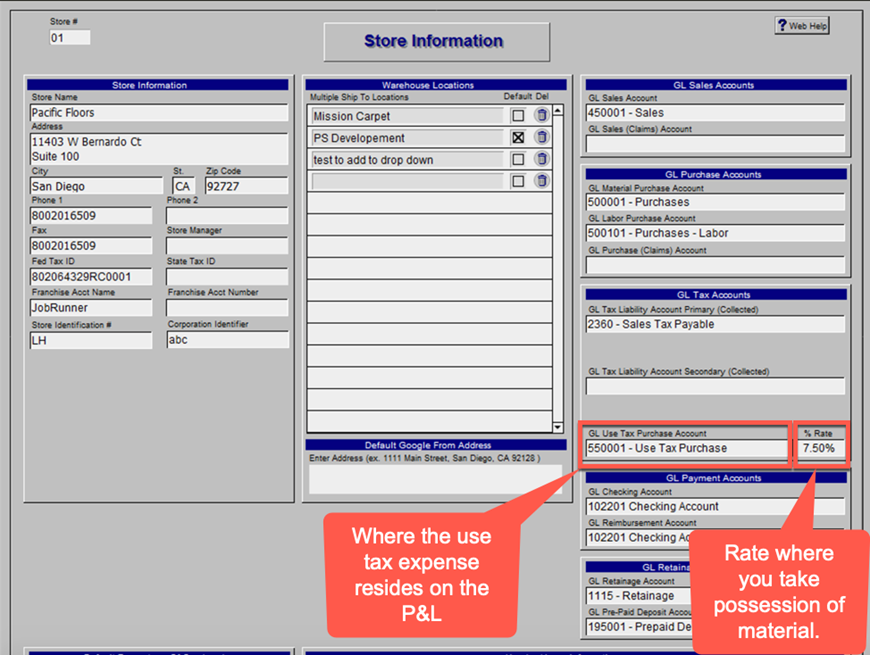
Once the default GL Use Tax Purchase Account is selected for
the store, enter the rate of tax that will be used to calculate tax at the
payable. Enter this value as a decimal. This method of calculating self-assessed
use tax does not base tax on job location. It bases the tax on the warehouse
where materials are received.
AP Vendor Bill Procedures
When posting the vendor bill against the purchase orders,
verify the costs as usual for the material and other landed costs such as
freight 1 and freight 2. Since the vendor is not charging you tax, there will
be no tax entered in the cost verification screen.
On the face of the payable voucher, enter the bill amount
and use the pencil icon to calculate the use tax based on that store branch’s
tax rate. The payable voucher will display the store location from the purchase
order in the field below the voucher memo field.
The posting to the financial accounts will debit the use tax
purchases (cogs) account above the line on the income statement and will accrue
as a credit in the sales tax liability account:

Evaluate Tax Accounts for Remittance
You will be using a specialized export of an account inquiry
to evaluate the use tax. Run an account inquiry on the store Use Tax Purchase
GL Account you wish to evaluate. Enter the account number and the date range
for the period. Once the account inquiry is generated, use the export function
(continue button choose yes to export) to export the data to Excel. The data
will display the vendor bill amounts, the purchases GL amounts, Inventory GL
amounts for stock POs, and the tax type from each payable. Total the debit and
credit columns to arrive at your tax totals:
There is a column in the export to display the tax type
picked up at the payable that is tied to the tax type at the job.
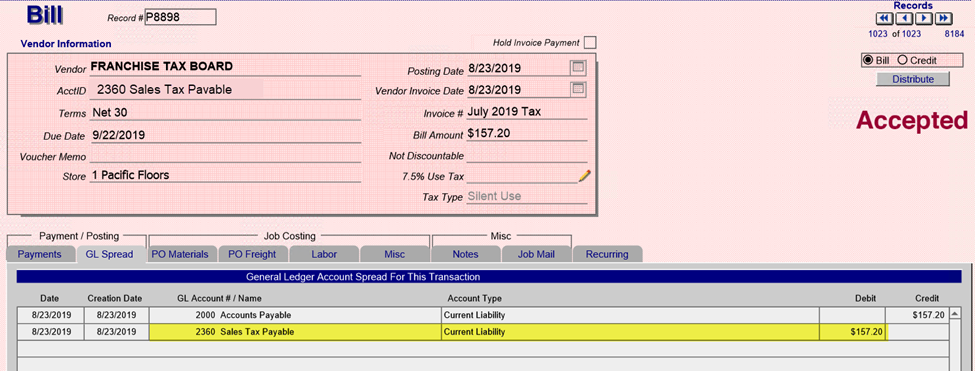
When the payable is created to pay the tax to the tax
authority, the payable will be coded to the Sales Tax Liability account to
relieve the accrued tax from the balance sheet.
If you have an
environment where you self-assess use tax and also have a retail sales tax, you
will need to run the standard sales tax report to evaluate the material-only sales tax invoices.
Run the standard
sales tax report and gain the total for supply-only sales tax. You will be
using this standard sales tax report and the specialized account inquiry export
to remit your overall tax.
Training-v22-20230322BG-KB