The system can email out Customer Statements for you automatically. Available for versions v20b1.8 and newer.
Feature enabled by Pacific Solutions upon request.
Email Customer Statements Video - 8 Minutes
Email Customer Statements Steps
1) Set the Minimum Statement Balance and the Minimum Credit Balance.
Admin > System Defaults > Accounting tab
2) Enter Default Email address.
Contact/Customer > Phone tab
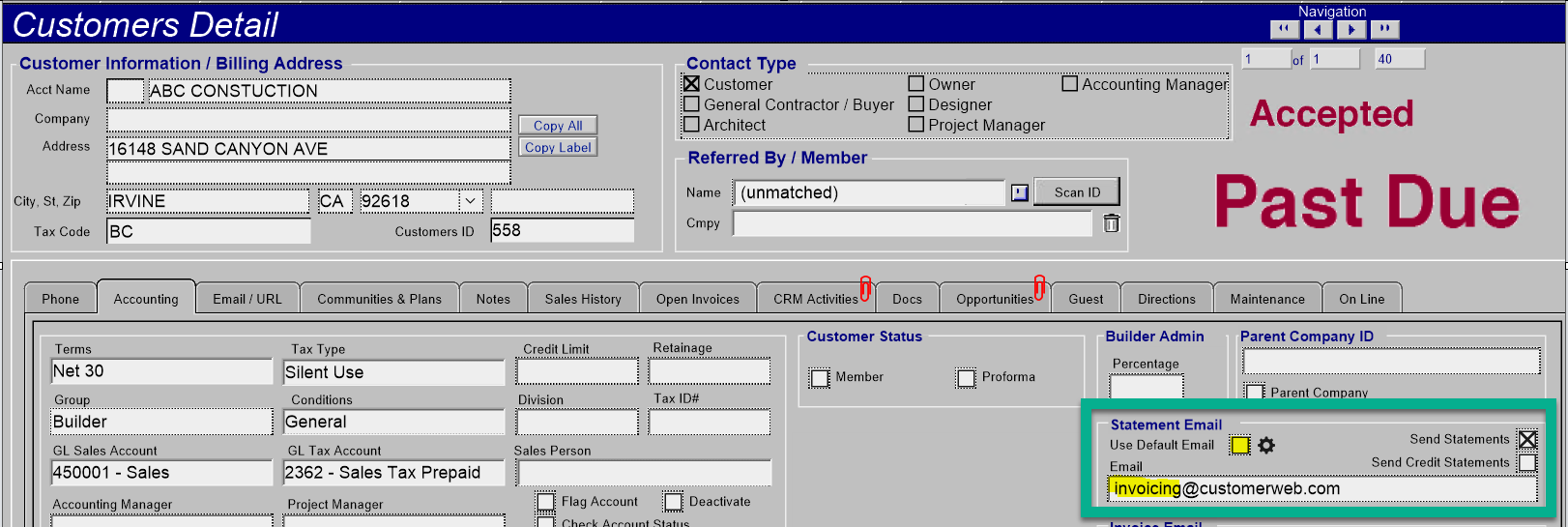
3) Check the "Send Statements" box to enable Statements. Check "Use Default Email" to send to the default email address.
Contact/Customer > Accounting tab
4) To change the parameters for an individual client, click the little "Settings" wheel and enter the values for this specific customer.
Note that the Admin > Defaults in Step 2 will determine whether a Statement goes out unless it is overridden at the Customer > Accounting tab.
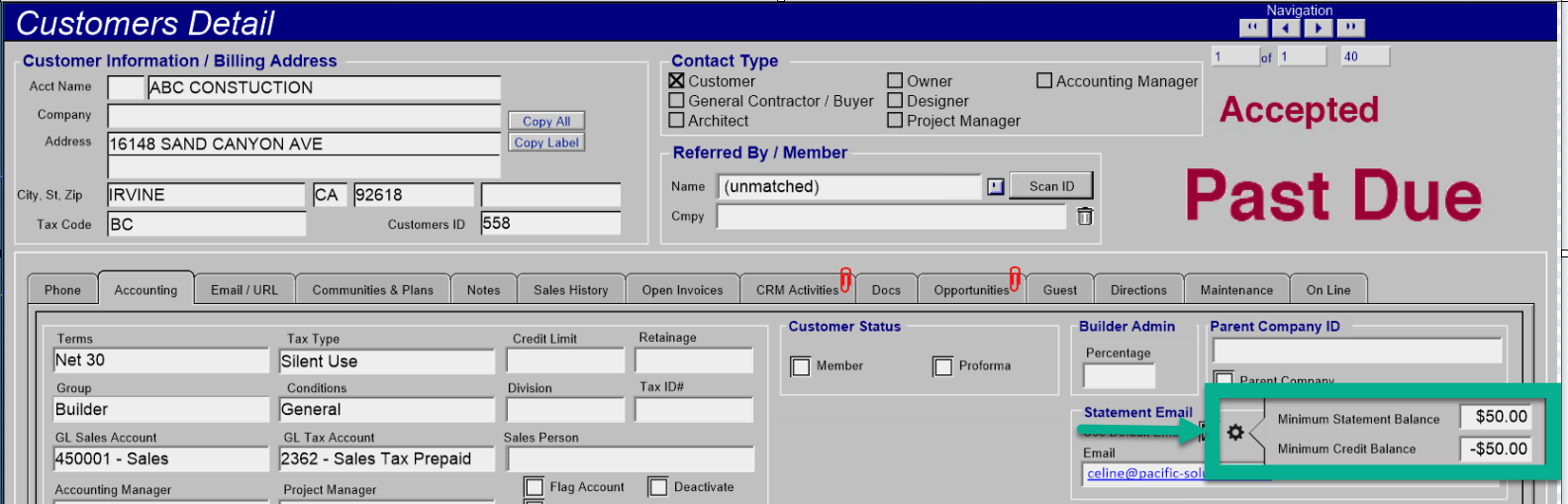
You can also use a different email address.
Uncheck/clear the box for "Use Default Email" and enter a different email address in the field.
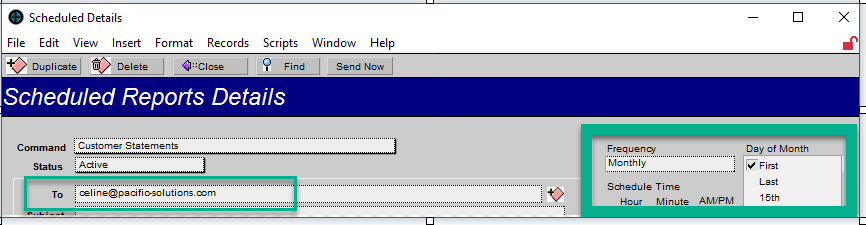
5) Schedule the Report
Admin > Schedule Reports > New
6) Set the Frequency and enter the "confirmation" email.
(someone in your organization that will receive a copy of all of the statements that were sent out by the system).
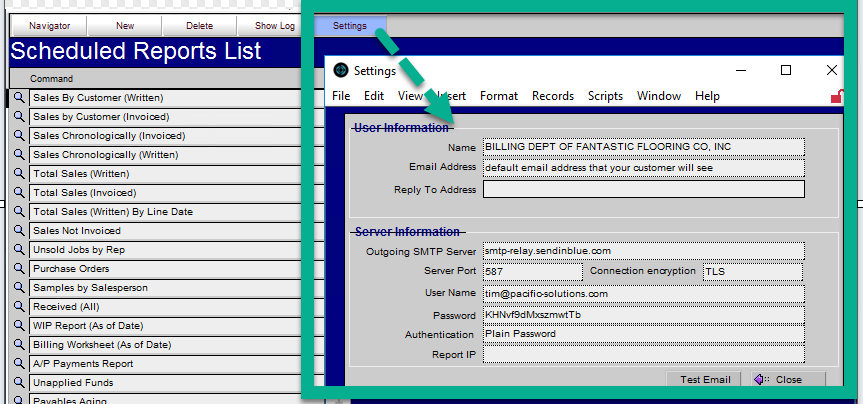
7) Ensure that the Admin > Scheduled Reports has the proper Settings for outgoing email.
Your IT department may need to assist you to set this up.
Training-v22b20230901CR-KB