Overview
Heartland payroll can be mapped, and the journal entry integrated into Pacific Solutions' management systems (FloorManager and JobRunner). Contact your local Heartland representative to set up an account for your outsourced payroll. Heartland may not be aware of any integration with Pacific Solutions and that is all right. You will be taking a Heartland report and bringing it into the management program. A direct link is not necessary.
Please contact
support@pacific-solutions.com
to have Heartland integration activated on your database.
Heartland Export
Once your account is set up with Heartland, you will be exporting from Heartland a payroll report called "GL Detail Export". It is currently an option from the Payroll Report On-Demand section of your "Reporting" options. Once you select the "GL Detail Export" option, in the right-side pane, choose "Regular Payroll - Pay Date.....[current payroll date shows with a run#]". Then you can click the "run report" button to export the data.
Essentially, you'll be using the same payroll report export for mapping that you will then use to import your first payroll posting. You only need to perform the mapping process once to set up the GL mapping. After that, you only need to remap if you have changes in the future. Once it exports to an Excel file (.csv or .xls), save this file somewhere (you can rename it if you wish) for safekeeping and record history. You'll be using this file in the next steps. This screenshot is an example of some of the lines in a Heartland GL Detail Export:
Core System Mapping
In the core management system (FloorManager or JobRunner), make sure you have access to the admin button called "Heartland". This can be done through an admin function called "Report/Admin Options". Refer to that knowledge paper for instructions.
Once you have access to the Heartland button in admin, navigate to Admin and open the Maintenance category. Click on the Heartland button:
There are large white buttons at the top of the screen. Click the "Import" button to locate the Heartland GL Detail Export file.
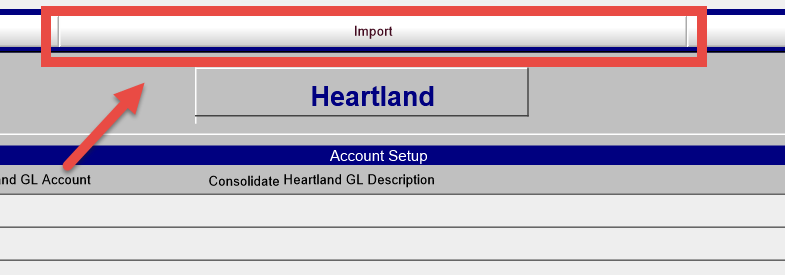
Confirm that you want to make a new list of GL Accounts. The first time you do this, the map will be empty. However, going forward, you only need to make a new map of accounts if you have changes in the payroll ledger accounts in the future. This area is strictly for mapping the GL accounts in your core system to the information provided by Heartland. Heartland will automatically assign its own GL accounts to your data. You are then taking that data and telling your management system which Heartland GL account matches your GL accounts. This is how the system remembers which system ledger accounts to use each time you bring in a Heartland payroll through the Journal Entry area later.
Locate the Heartland GL Detail Export file and click to open it:
You will be mapping to your system's ledger accounts using the first column labeled "PS Account". You can specify consolidation parameters in the column labeled "Consolidate". Leaving a consolidated field blank tells the system to keep all the detailed lines separated into individual lines. Entering a number tells the system to roll up the values in that Heartland account into a lump sum posting to the PS account. You would number each consolidation sequentially. For example, if you had 10 lines of staff paychecks and 7 lines of officer paychecks, the Heartland export would show 10 lines of transactions for staff and 7 lines of transactions for officers. Leaving the consolidate field blank in Pacific Solutions would let all 17 transactions post during the journal entry import as separate posting transactions in the amount of each check. On the other hand, if you choose to consolidate each group you would enter "1" in the consolidation for staff paychecks to specify it as the 1st consolidation. Then you would enter a "2" in the consolidation for officer paychecks to specify it as the 2nd consolidation. This screenshot shows this example along with a matching consolidation for the tax transactions:
Map your PS Accounts to each category of Heartland GL Description by choosing your system's ledger account from the drop-down list when you click into the PS Account field. You must select from the list. Typically, all of the credit transactions will be mapped to your checking account GL. Check with your CPA or accountant if you are not sure which accounts need to be assigned.
Once the mapping is complete, you will be ready to import your first payroll entry.
Payroll Import Entry
You will be using the Journal Entry feature in your management system to import the Heartland payroll file and post the journal entry details. When the download is ready from Heartland, download the file and save it.
Navigate to Journal Entry from the main navigator. Click on the Heartland button at the bottom to create a new payroll posting.
Give the journal entry a title and a date for posting. Click the OK button. Locate the payroll file you saved from Heartland. Once the system is finished processing the file into the journal entry grid, you will see the journal entry automatically mapped to your system's GL accounts:
Check that all is assigned and use the Accept button at the bottom to post and close the journal entry for payroll. The mapping is done, and the first payroll entry is complete. Now each payroll file can be imported through the journal entry area each time. You do not need to map the ledger accounts each time. Only map ledger accounts when there have been new additions, omissions, or other changes in the Heartland payroll.
Training-v22b10-20220722BG-KB