FileMaker Admin Console
This document walks you through accessing the FileMaker Admin Console. You can use the console to change the FileMaker idle time out time and for disconnecting users from FileMaker.
Disconnecting users is necessary in some cases when there are “trapped” users. When the FileMaker session is no longer running on a workstation and is continuing to run on the server, the session is “trapped”. Disconnecting the user session will enable users to login back into JobRunner or FloorManager without capping the number of licenses being in session simultaneously.
Changing the idle time out length gives you the ability to shorten or lengthen the amount of time the FileMaker database will remain open until it performs an automatic shut down.
This document covers logging into FileMaker 15 and FileMaker 17 Admin Consoles.
Setup Process
Be sure you have access to your server.
Be sure you have access to the FileMaker Admin Console (shortcut) on the server.
Be sure you have the login credentials to the FileMaker Admin Console. If you do not, contact support@pacific-solutions.com and obtain your login credentials.
Login
Logon to your server. Click the shortcut to open FileMaker Admin Console:
FileMaker 15
 FileMaker 17

Enter your FileMaker Admin Console login credentials:
FileMaker 15 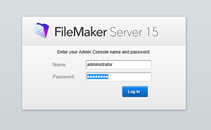 FileMaker 17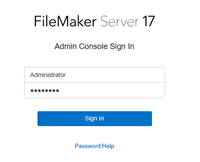
Disconnecting Users From the Database
Disconnecting Users (FileMaker 15)
Select “Activity” from the FileMaker Server 15 Dashboard on the left and open the “Clients” tab in the Activity window on the right:
Click on a user listed to highlight it. Then click the envelope icon (far right) to select an activity (send message, disconnect etc):
Select “Disconnect” from the drop down list to remove the user session. If the user session does not remove from the list view (within 3 minutes), please contact
support@pacific-solutions.com
or 800.201.6509.
**Note: There is a 2 minute disconnect time. If it takes longer than 3 minutes to disconnect a user session, please contact support.**
Disconnecting Users (FileMaker 17)
Select “Databases” from the page header links in the FileMaker Server 17 dashboard. Use the checkbox to select a user session from the “Clients” list on the right. Use the “Disconnect” button to remove the user session from the clients window. If the session does not remove from the window (within 3 minutes(, please contact
support@pacific-solutions.com
or 800.201.6509.
**Note: There is a 2 minute disconnect time. If it takes longer than 3 minutes to disconnect a user session, please contact support.**
Setting the Database Idle Time Out
Setting the Idle Time (FileMaker 15)
- Select "Database Server" from the vertical Menu options on the left pane.
- Select "FileMaker Clients" tab from the horizontal tab options.
- Click the box marked "Set maximum idle time allowed for FileMaker clients (minutes)". Select the number of minutes in the field.
- Click the SAVE button
- Logout
** DO NOT modify any other field on this screen**
Setting the Idle Time (FileMaker 17)
- Select the "Configuration" tab from the horizontal tabs across the screen.
- Select the "FileMaker Clients" category from the vertical menu on the left pane.
- Click the "change" menu in the "FileMaker Pro Advanced and FileMaker Go" option under Session Timeout. Select the desire time for timeout.
- Logout.